
On this page
- What changed with Google Business Profile food ordering?
- How do you hide DoorDash or Uber Eats on your Business Profile?
- Should you hide every third-party delivery app?
- How do you set your own ordering link as preferred?
- What about third-party booking and reservation links?
- Why does the ordering button look different on some profiles?
- What should restaurants do this week?
- Final thoughts
- Frequently asked questions
- Can I remove DoorDash from my Google Business Profile?
- Why is a delivery app on my profile if I never added it?
- How long does it take for hidden providers to disappear?
- Can I hide a reservation or booking partner the same way?
- Can I manage ordering links for many locations in bulk?
- Will hiding delivery apps hurt my Google ranking?
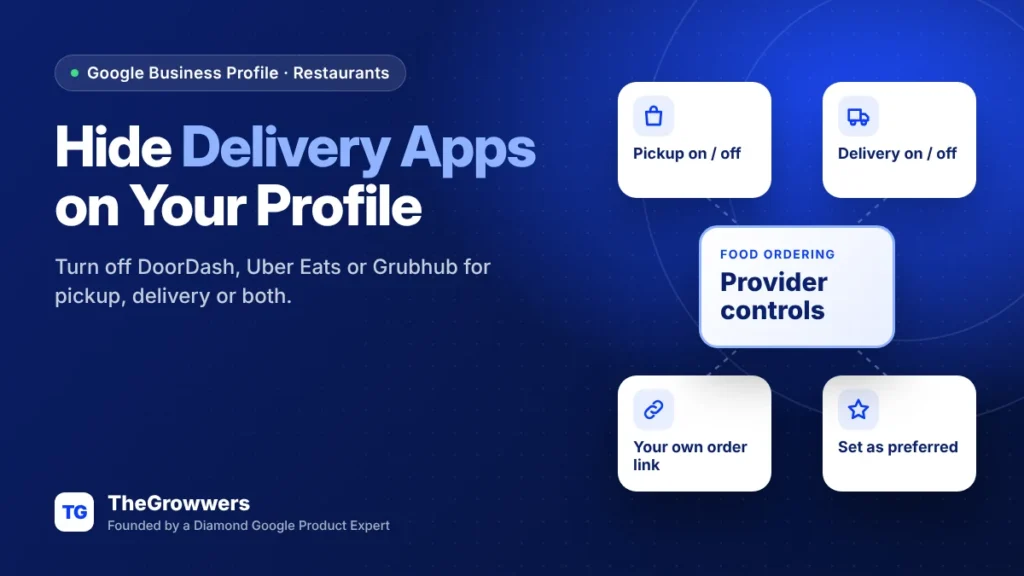
With the new Google Business Profile food ordering controls, you can hide DoorDash, Uber Eats, Grubhub or any other third-party ordering provider yourself: open Food ordering, pick the provider, and turn off “Show for pickup”, “Show for delivery”, or both. No more emailing each delivery app and waiting.
Maybe you own a restaurant and the “Order online” button sends people to an app that takes a big cut. Or to a menu that’s two years old. Or to a delivery partner you stopped working with last spring.
That used to be a real headache. Now it’s a few taps. This guide walks through Google Business Profile food ordering controls step by step, plus what to do about booking and reservation links, which still work the old way.
Key takeaways
- Since late October 2026, restaurants can hide any third-party food ordering provider for pickup, delivery, or both, right from their Business Profile.
- Changes typically go live on Google Search and Maps within a few hours, and you can turn a provider back on any time.
- You can set a “preferred” provider for pickup and for delivery, which is how you push your own ordering page first.
- Third-party booking and reservation links can’t be hidden this way. You still ask the provider, and they have 5 business days.
What changed with Google Business Profile food ordering?
Google added per-provider controls for third-party ordering. On October 28, 2026, Search Engine Roundtable reported that Lisa Landsman from Google announced the change on LinkedIn: restaurants can now manage and opt out of specific providers directly from their dashboard, instead of submitting requests to each delivery platform.
Here’s why that matters. Third-party providers that say they have an authorized relationship with your business get listed on your profile automatically. You didn’t add them. Until now, getting one off meant chasing that company’s support team.
Spoiler: restaurant owners have been asking for this for years.
How do you hide DoorDash or Uber Eats on your Business Profile?
Open your Business Profile, select Food ordering, choose the provider, select “Show provider to customers”, and turn off Show for pickup, Show for delivery, or both. Then Save and Confirm. Google’s help page says updates typically publish on Search and Maps within a few hours.
Step by step, from Google’s Manage online ordering options help page:
- Go to your Business Profile (search your business name on Google while signed in, or open it in Google Maps).
- Select Food ordering.
- From the list, select the third-party provider you want to hide.
- Select Show provider to customers.
- Turn Show for pickup off, Show for delivery off, or both.
- Select Save, then Confirm.
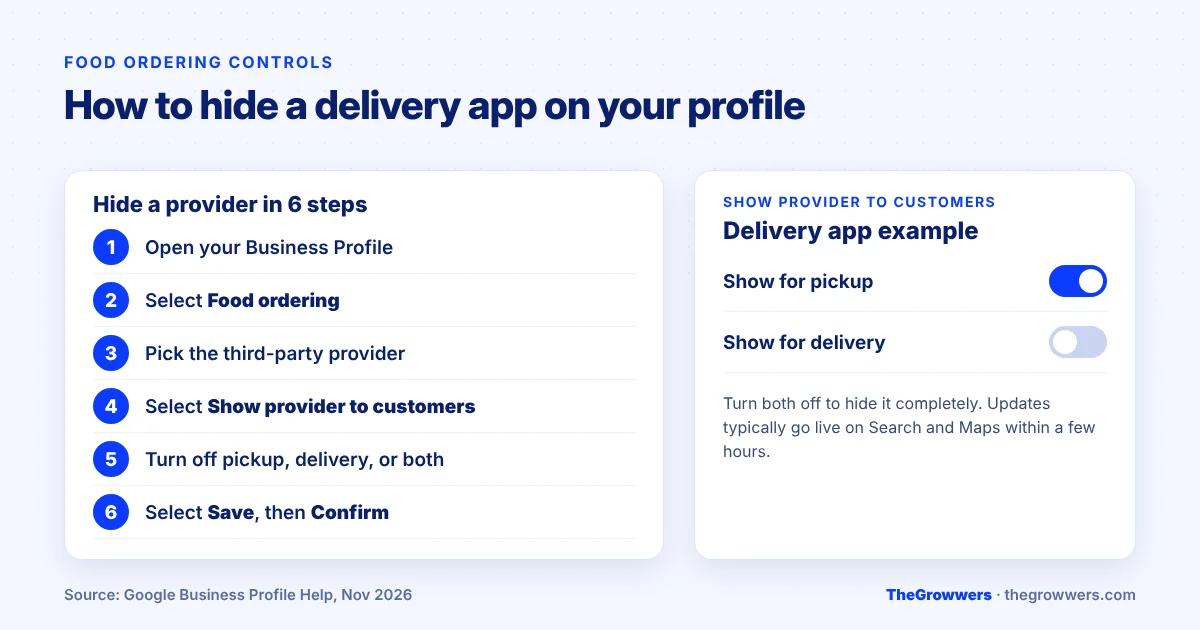
To hide a provider completely, turn off both pickup and delivery. You can switch them back on any time, so this isn’t a one-way door.
One thing that trips people up: if you previously turned off food ordering for the whole profile, you’ll see an “Accept orders on your profile” setting instead. Turn it on (then Turn on to confirm) and the individual provider controls appear.
Should you hide every third-party delivery app?
Usually not. Hide the providers you don’t work with, can’t fulfill through, or that send people to a wrong menu. Keep the ones that bring you real orders. Many diners order through the app they already pay for, so removing it can mean losing that order rather than moving it to you.
Google’s own advice in the announcement leaned the same way. A mix of trusted providers can work in your favor, because diners often stick to platforms where they have subscriptions or saved payment details.
So here’s how we’d think about it:
| Situation | What to do |
|---|---|
| You don’t have a contract with the provider | Hide it for both pickup and delivery |
| You do pickup through them but your own drivers do delivery | Hide it for delivery only |
| The provider’s menu or prices are out of date | Fix the menu on their side, or hide it until you do |
| You have your own online ordering page | Add it as a link and set it as preferred |
| The provider brings steady orders you’re happy with | Leave it on |
TheGrowwers recommends a quick audit every few months. Click every ordering option on your own profile like a customer would. If a link lands on a closed store page or a wrong menu, that’s a lost order and probably an annoyed review too.
How do you set your own ordering link as preferred?
In Food ordering, select your link (or add it with “Add a link”), choose “Set as preferred”, and turn on Preferred for pickup and/or Preferred for delivery. Then Save. This is the main way to put your own ordering page ahead of the delivery apps.
- Go to your Business Profile and select Food ordering.
- Select a provider or link from the list. To add your own, at the bottom select Add a link.
- Select Set as preferred.
- Turn Preferred for pickup and/or Preferred for delivery on.
- Select Save.
A couple of limits from Google’s help page. You can’t turn pickup or delivery on for a provider that doesn’t offer it. And if you’ve hidden a provider for pickup or delivery, you can’t make it preferred for that option either.
Google’s Manage your local business links page adds that you can have up to 10 links per category, and the preferred one shows at the top labeled “Business preferred”. Local business links can’t be managed through the Business Profile API or spreadsheet upload, so multi-location brands have to do this per profile.
If you added a link yourself and want it gone, select it in Food ordering, choose Remove link, then Remove to confirm.
What about third-party booking and reservation links?
Those still can’t be removed from your profile settings. Google’s help page says you have to contact the third-party provider directly through their opt-out link, support form or account portal. Providers are required to process opt-out requests within 5 business days.
If they don’t remove it within 5 business days of your request, report a third-party violation to Google. Keep a screenshot of your request with the date. You’ll want it.
So the new controls cover food ordering only. Reservation widgets and appointment booking links from partners are a separate process. We covered booking links in more detail in our guide to checking your Google Business Profile booking link.
Why does the ordering button look different on some profiles?
It depends on where you are. Google’s help page says that in some countries and regions, ordering options appear under an “Order online” button, while in others the “Place an order” links show separately on the profile. Same settings behind it, different layout for the customer.
That’s worth knowing before you tell your team “the button is gone”. Check your profile on both Google Search and Google Maps, on a phone, signed out if you can.
What should restaurants do this week?
Here’s a quick checklist:
- Open Food ordering on your profile and list every provider showing there.
- Click each one as a customer. Does it open your restaurant, the right location, the current menu?
- Hide the ones you don’t work with for pickup, delivery or both.
- Add your own ordering page if you have one, and set it as preferred.
- Re-check in a few hours on Search and Maps to confirm the changes went live.
- Ask booking or reservation providers in writing to remove any link you didn’t approve, and note the date.
- Watch your clicks. Your Business Profile performance report shows how people interact with your profile. Our Business Profile performance metrics guide explains what each number means.
Final thoughts
Google Business Profile food ordering controls are a small settings change with a big effect on margins. For years, the delivery apps decided which ordering buttons sat on your Google profile. Now you do. Take ten minutes, click through every option on your profile, and decide which ones actually deserve the spot.
If your restaurant profile has bigger problems (wrong menus, duplicate listings, links you can’t get rid of), our local SEO team can sort it out. Or book a free consultation and we’ll take a look.
Frequently asked questions
Can I remove DoorDash from my Google Business Profile?
Yes. Go to your Business Profile, select Food ordering, choose DoorDash, select Show provider to customers, and turn off both Show for pickup and Show for delivery. Save and confirm. Google says updates typically appear on Search and Maps within a few hours, and you can turn the provider back on whenever you want.
Why is a delivery app on my profile if I never added it?
Google automatically lists third-party providers that state they have an authorized relationship with your business. That’s why apps can show up without you adding anything. With the new food ordering controls, you can hide any of them for pickup, delivery or both without contacting the provider first.
How long does it take for hidden providers to disappear?
Google’s help page says updates typically publish on Google Search and Maps within a few hours. If a provider still shows after a day, open Food ordering again and check both the pickup and delivery toggles were saved and confirmed. Also check you’re editing the right location if you manage more than one.
Can I hide a reservation or booking partner the same way?
No. The new controls only cover food ordering. For third-party booking, appointment or reservation links, contact the provider directly through their opt-out form or account portal. They’re required to process it within 5 business days. If they don’t, you can report a third-party violation to Google.
Can I manage ordering links for many locations in bulk?
Not through the usual bulk tools. Google’s help page says local business links are not available through the Business Profile API or spreadsheet upload. Multi-location restaurants need to manage food ordering providers and links on each profile individually, so build it into your regular location audits.
Will hiding delivery apps hurt my Google ranking?
Google hasn’t said ordering providers affect local rankings. The bigger risk is lost orders, because some diners only order through apps where they have a subscription or saved payment details. Hide providers you don’t work with, and keep the ones that bring you real business.